
You open a YouTube video expecting to hear the original speaker, but the audio starts in another language. Or the opposite happens: you find a useful video in a language you do not understand and want to know whether an English audio track exists.
When a video has multiple audio tracks, YouTube lets you switch between them directly in the player. The important limitation is that the Audio track menu only gives you languages that are actually available for that video. If the language you need is missing, changing a setting cannot create a new track.
How to change the audio language on a YouTube video
For a video with multiple audio tracks, the basic process is simple:
- Open the YouTube video you want to watch.
- Select the Settings gear in the video player.
- Select Audio track.
- Choose the language or original audio track you want to hear.
YouTube documents this same viewer control in its help guidance for watching videos in a preferred language. The exact interface can vary slightly by device, but the key option is Audio track.
See YouTube’s official help for preferred-language viewing.
How to switch back to the original audio
If YouTube starts playing a dubbed version automatically and you would rather hear the speaker’s original voice, open Settings → Audio track and choose the original-language track when it is listed.
This is useful when you understand the source language, want to hear the creator’s original delivery, or simply prefer subtitles over dubbed speech.
Do not confuse the audio track with captions. Changing the audio track changes what you hear. Changing captions changes the text you read on screen.
Why is the Audio track option missing?
If you open Settings and do not see Audio track, the most likely explanation is that the video does not offer another selectable audio track for you.
Not every YouTube video has multilingual audio. Additional tracks may come from audio uploaded or managed by the creator, or from YouTube’s automatic dubbing system when it is available for that content. YouTube describes automatically dubbed videos as videos with generated translated audio tracks and notes that they are marked as auto-dubbed in the description.
Read YouTube’s official explanation of automatic dubbing.
Before assuming something is broken, check another video known to have multiple languages. Availability is video-specific.
What if your language is not listed?
Seeing the Audio track menu does not mean every language is available. It only means that the video has one or more selectable tracks.
If your preferred language is absent, you have three practical options.
1. Use captions or translated subtitles
If readable captions are available, subtitles may be the fastest way to understand the video. This works well when you can comfortably read while watching, when exact terminology matters, or when you want to keep the original voice.
Captions and dubbed audio solve different problems. Captions preserve the original sound but require you to follow text. Translated audio can be easier when the video is visually dense, when you are multitasking, or when continuous reading distracts from the content.
2. Look for another version from the creator
Some creators publish localized versions, separate language channels, or videos with different audio availability. Search the creator’s channel and check the video description before using a third-party workflow.
3. Use a translation tool when YouTube does not provide the audio you need
If your goal is to listen to a foreign-language YouTube video in another language, a browser-based translation tool can fill a different role from YouTube’s built-in tracks.
FyDub is designed around this viewer problem: translating video audio while you watch. This can be useful when the built-in YouTube audio menu does not contain the language you need and you would rather listen than rely only on translated text.
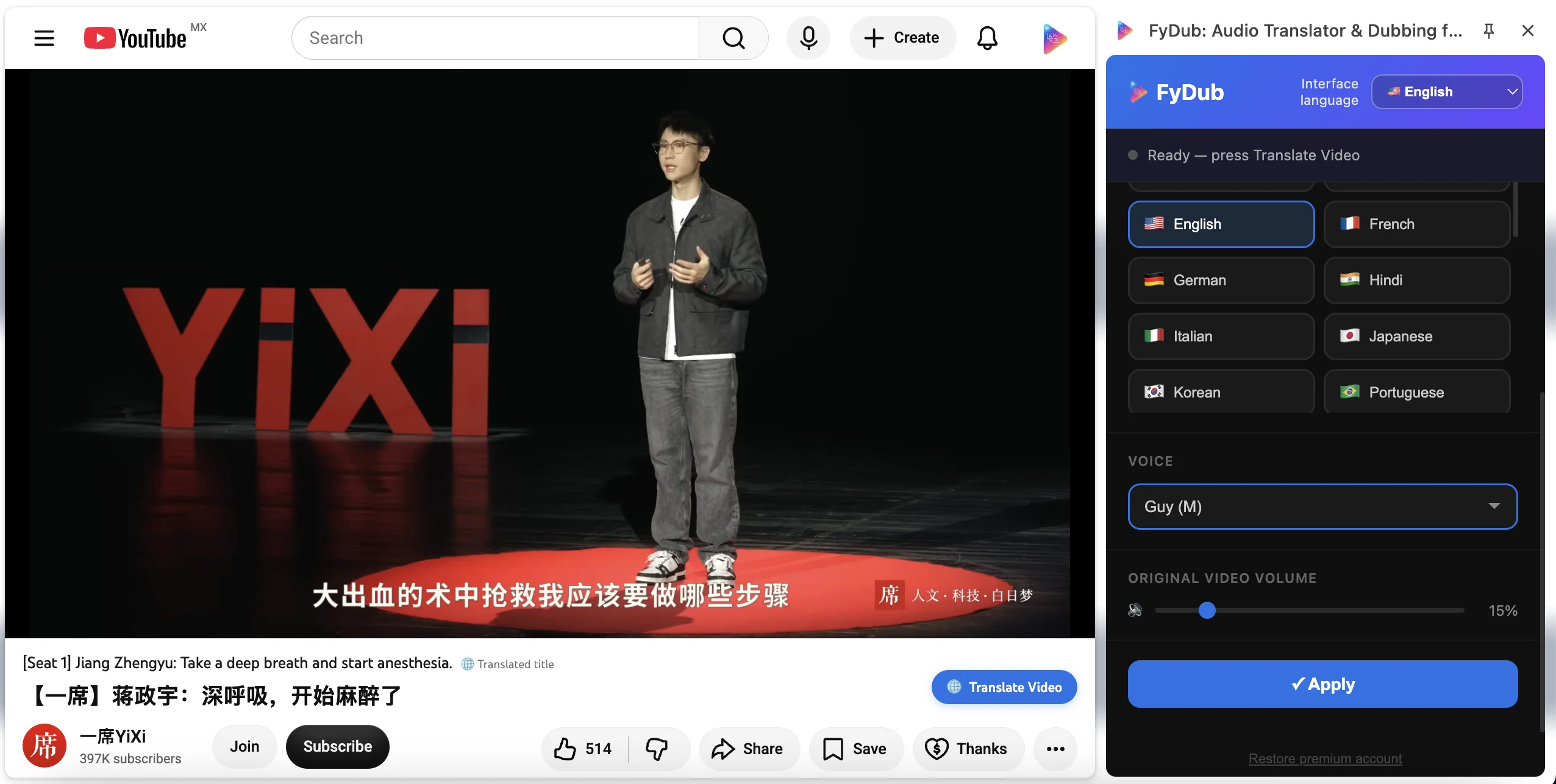
Because translation options depend on the source video and the tool being used, treat this as an alternative workflow rather than as a way to add a native YouTube audio track to the video itself.
Audio track vs subtitles vs translated audio: which should you use?
| Option | Best when | Main limitation |
|---|---|---|
| YouTube Audio track | Your preferred spoken language is already available on the video | You can only choose tracks that exist for that video |
| Subtitles/captions | You are comfortable reading while listening to the original audio | Reading can compete with visual attention |
| Translated audio tool | You want to listen in another language when a suitable built-in track is unavailable | It is a separate translation workflow, not a native audio track supplied by the video |
Why did YouTube change the language automatically?
Multilingual video creates a new kind of playback decision: a platform may have an original track plus one or more dubbed tracks, and the track presented to a viewer can be influenced by language-related viewing preferences and availability.
If the voice you hear is not the one you expected, first check Settings → Audio track. That tells you whether you are hearing an alternate track and lets you choose another available option for that video.
If your main problem is specifically unwanted automatic dubbing, see our deeper guide to how YouTube automatic dubbing works, its limitations, and viewer controls.
What to do when you just want to understand the video
The simplest decision tree is:
- Check Audio track first. If your language is there, use the built-in option.
- If it is not there, check captions. They may solve the problem without changing the audio.
- If you specifically want spoken translation, use a translated-audio workflow.
The key is not to spend time searching for a hidden YouTube setting that cannot produce a language track the video does not have.
Listen in the language that works for you
YouTube’s built-in multilingual audio is the cleanest option when the right track already exists. When it does not, subtitles and translated-audio tools cover different needs.
If you regularly find useful YouTube videos that you cannot comfortably follow because of the spoken language, FyDub offers a way to translate audio as part of the viewing experience.